Change Sounds
Brief
This section describes how you can change the sounds of your FX Trading Station.
Details
You can change sounds of individual trading events, the FX Trading Station sound scheme, and news sounds.
Change Sounds of Trading Events
To change the sound of a trading event:
- On the System menu, click Options.
- The Options dialog box appears.
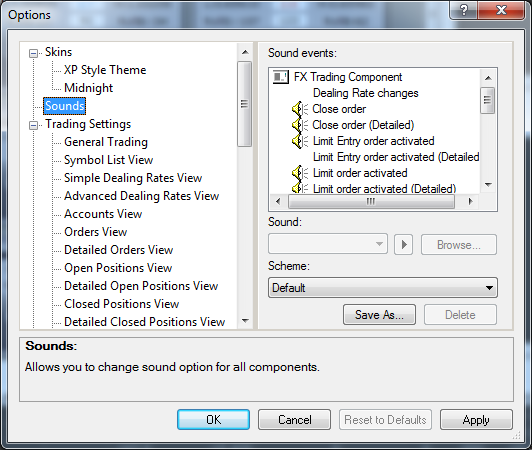
- In the left area of the Options dialog box, click Sounds.
- In the right area of the Options dialog box, under Sound events, click the event for which you want to change the sound.
- Choose a new sound for the event by doing one of the following:
- To choose a sound from the available sounds, in the Sound box, click the sound of your choice.
- To choose a sound on your computer, click Browse, and then select a sound file.
- To listen to the chosen sound, click the Play button next to the Sound box.
- Click OK.
Change Sound Scheme
After you change all the sounds that you wanted to change, you can save the whole set of sounds as a sound scheme.
To save a sound scheme:
- Click Save As.
- The Save Scheme As dialog box appears.
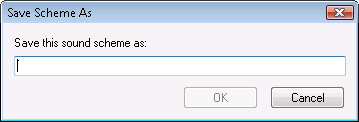
- In the Save this sound scheme as box, type a name for the sound scheme.
- Click OK.
- The name of the sound scheme appears in the Scheme box.
To change the FX Trading Station sound scheme:
- In the Scheme box, click the name of the sound scheme of your choice.
- Click OK.
To delete the FX Trading Station sound scheme:
- In the Scheme box, click the name of the sound scheme you want to delete.
- Click Delete, and then click Yes in the confirmation box that appears.
Change News Sounds
To change news sounds:
- In the System menu, click Options.
- The Options dialog box appears.
In the left area of the dialog box, find News Options, and then click General Options.
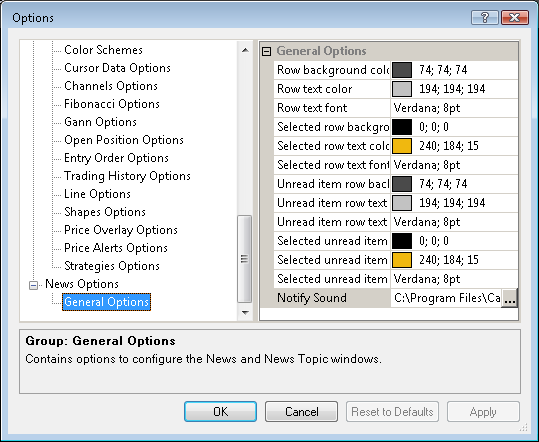
- In the right area of the Options dialog box, click Notify Sound,
and then click the button that appears on the right.
- The Choose Sound dialog box appears.
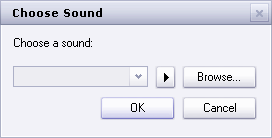
- Click Browse... to specify the path to the sound file that will be played back every
time a news item is received, and then click OK twice.
back